
What Is CHKDSK Utility & When to Run It
CHKDSK (short for Check Disk) is a system tool in Windows, OS/2 and DOS that checks the file system integrity of a partition and fixes logical file system errors.
It can repair errors caused by bad sectors, improper or sudden shutdowns, corrupted software, and metadata corruption. Note that CHKDSK marks bad sectors so Windows stops using them, but it cannot physically repair damaged sectors.
Run CHKDSK when:
- Windows shut down abnormally or crashed
- a drive becomes inaccessible or asks you to format the partition before you can use it, often caused by an improper shutdown or abnormal removal of a USB drive
- files open slowly, freeze, or appear corrupted
- a USB drive was removed without safe ejection
So how do you repair a hard drive in Windows 10 with CHKDSK? Here are 4 ways to run the Windows 10 Check Disk utility and fix hard drive errors.
Which CHKDSK Windows 10 Method Should You Choose?
| Method | Best for |
| Drive Properties | Quick check with a graphical interface |
| Command Prompt | Full control with /f, /r and other parameters |
| MiniTool Partition Wizard | Users who prefer no commands |
| Installation disc/USB | Repairing when Windows won’t start |
Method 1. Run Check Disk Windows 10 from Partition Property
You can run Windows 10 CHKDSK from Windows desktop and the detailed steps are as below.
Step 1. Right-click Windows Start Menu and select Disk Management to open it.
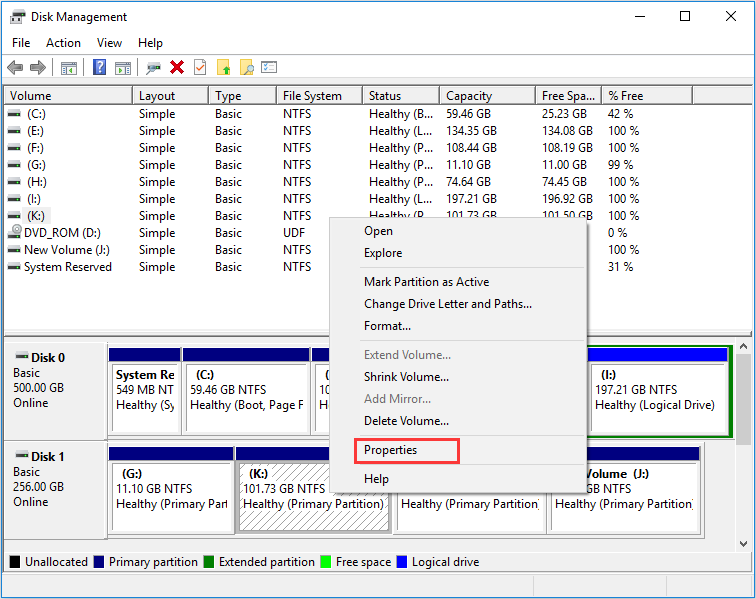
Step 2. When you get the main interface of Disk Management, you can select the drive that you want to check and fix, then right-click it and choose Property.
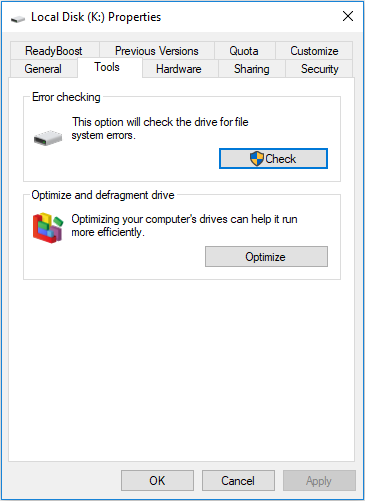
Step 3. On the Tools tab, click Check.
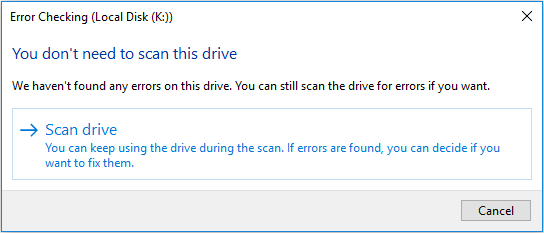
Step 4. If the system detects that there are errors, you will be asked to check the disk. If no errors are found, you will see a message as shown in the following picture. You can still choose to check the drive if you want to. Click on Scan drive.
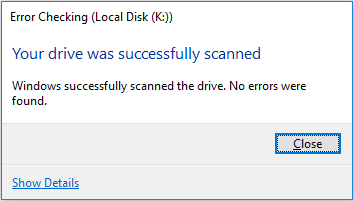
Step 5. Windows will display a message as below after completion. If no errors are found, it will say no error found. Then click Close to exit it. If there are some errors found on the drive, Windows will ask for a restart to fix the errors.
Method 2. CHKDSK Windows 10 with Elevated Command Prompt.
CHKDSK Windows 10 with elevated Command Prompt performs a couple of functions. Although running it may take some time, it does prevent hard disk from being damaged and loss of data in the long term. It is recommended to run it whenever Windows has shut down abnormally or hard disk performs abnormally.
Step 1. Input cmd in the Windows 10 Cortana search box. Right-click the best match then select Run as administrator.
Step 2. In the elevated Command Prompt, type CHKDSK *: /f (* represents the drive letter of the specific drive that you want to scan and fix) and then press Enter. This CHKDSK Windows 10 command will scan your computer drive for errors and try to fix any that it finds.
Here I take CHKDSK e: /f as an example (e represent the drive letter that I want to scan). The bellowing picture shows there is no file system error with the partition. If there is any hard drive errors detected, CHKDSK will help you fix it automatically.
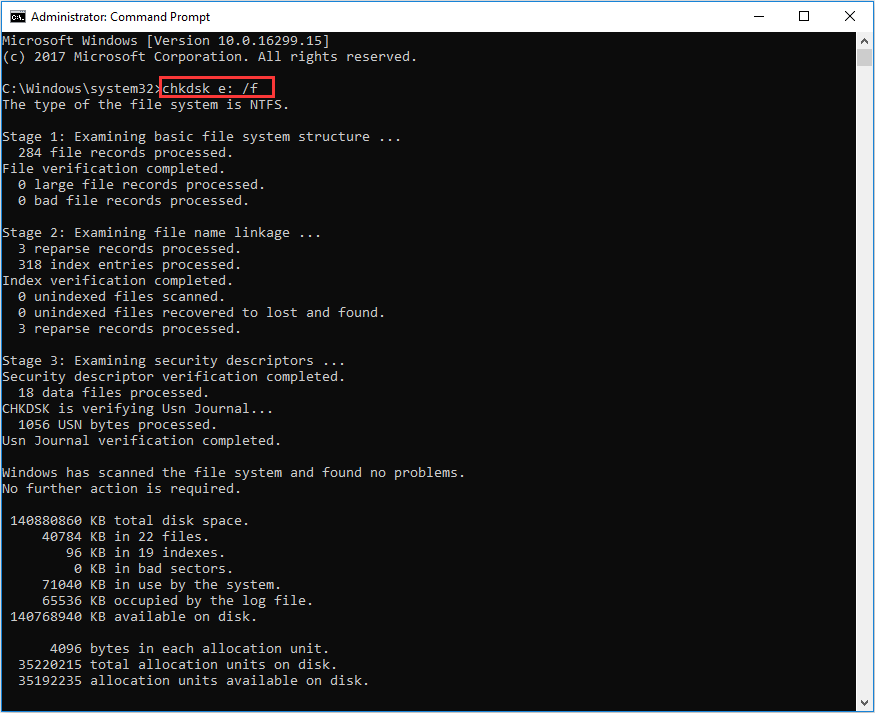
Type Y and press Enter to comfirm, and then restart your computer to continue with the CHKDSK repair. C drive and system partition will always ask for a reboot.
Step 3. Input exit to exit the Command Prompt Window after performing all operations.
/f – fix any errors it detected
/r – Locate bad sectors on the drive and try to recover any and all readable information from them
Apart from commonly used /f and /r, you can choose the following parameters valid for both FAT32 / NTFS partition when running the CHKDSK utility from an elevated Command Prompt.
- /v – Display list of every file in every directory on FAT32 partition. On NTFS, it displays the cleanup messages.
- /x – force the volume to dismount. Also invalidates all open file handles. This should be avoided in Desktop Editions of Windows, because it may cause data loss/corruption.
The following are valid for NTFS volumes only.
- /c – skip checking of cycles within the folder structure.
- /I – perform a less vigorous check of index entries.
- /L[:size] – change the size of the log file to specified number of kilobytes. If size is not specified, it will display current size.
- /b – re-evaluates bad clusters on the volume (implies /R)
For the full list of options, see Microsoft’s chkdsk documentation.
Besides, CHKDSK cannot repair hard bad sectors, in which case, data can get lost and become unusable. If you have very important files and data stored on the drive, you’d better backup the hard drive as this occasion could happen sometimes.
If you cannot boot up your computer, you can run the tool from Command Prompt either by booting your computer into the Recovery Mode or by using the original installation disc to run Command Prompt (For detailed steps, please see Method 4). If you can, you may also run CHKDSK repair with third-party software, but be sure to choose a reliable one.
Method 3. Windows 10 CHKDSK Repair with Third-party Software
If you are not familiar with commands or find that using commands is error-prone as it requires you to input every command correctly, in this way, you can use a free CHKDSK repair alternative to repair hard drive Windows 10. It is recommended to use MiniTool Partition Wizard Free Edition, which makes CHKDSK Windows 10 as a breeze.
MiniTool Partition Wizard Free Edition is an easy-to-use partition manager. Its Check File System function can scan through your hard drive and fix all errors detected. It is not as complicated and time-consuming as running CHKDSK in Command Prompt. And it is simpler to operate with its intuitive interface.
Apart from Check file system function, it can also perform other operations like format partition, resize partition, extend partition, copy partition/disk, convert MBR to GPT without data loss, wipe disk, convert FAT to NTFS.
Next, let’s see detailed steps about how to run CHKDSK Windows 10 to fix hard drive error with third-party software.
Step 1. Download MiniTool Partition Wizard Free Edition by clicking the following button. Install it on your computer and launch it to get the main interface.
MiniTool Partition Wizard FreeClick to Download100%Clean & Safe
Then select the target partition, and choose “Check File System” from the Check Partition group or from Partition menu.
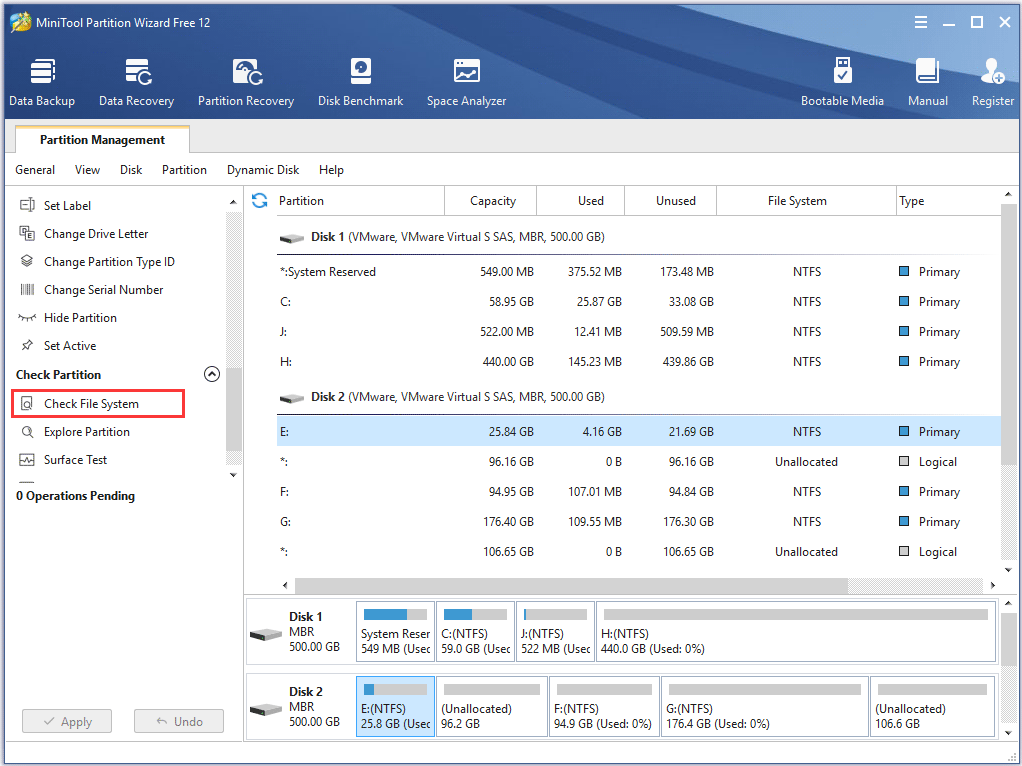
Step 2. You will see a new window with two options: Check only and Check & fix detected errors. If you only want to check, select Check only; if you want to recover mistakes during the checking process, select Check & fix detected errors. After that, click Start button. Once you click Start, MiniTool Partition Wizard will check/fix file system immediately.
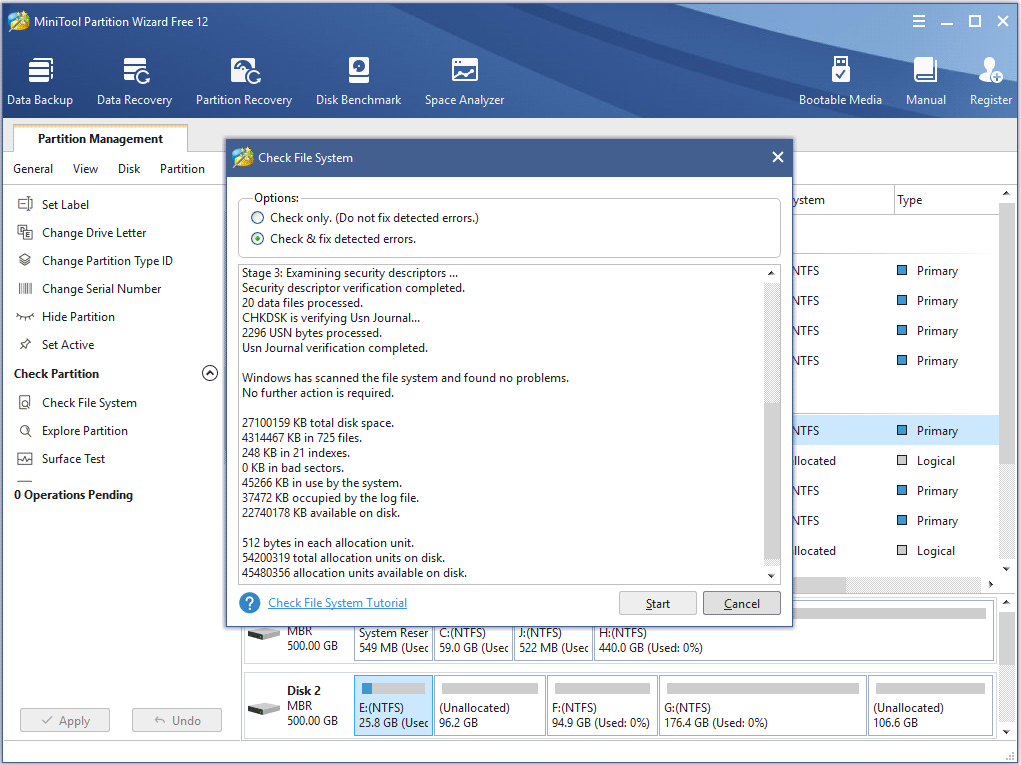
This page shows that MiniTool found no problems. If there is an error detected by MiniTool Partition Wizard, just let Partition Wizard fix it.
Method 4.Run Check Disk Windows 10 from Installation Disc/USB drive
The above three methods show you how to run CHKDSK when your computer can boot up successfully. However, if Windows won’t start, how can you check disk Windows 10?
Well, in this case, you can run CHKDSK on boot and check the hard drive for errors via Windows installation disc or USB drive. By following the steps as below, CHKDSK utility can be accessed easily.
Step 1. Insert Windows 10 installation disc or USB flash drive with Windows.
Step 2. Change the BIOS boot sequence to boot from the disc or USB drive.
Step 3. Select your language performance and click Next.
Step 4. Click Repair your computer.
Step 5. Then choose Troubleshoot on this page.
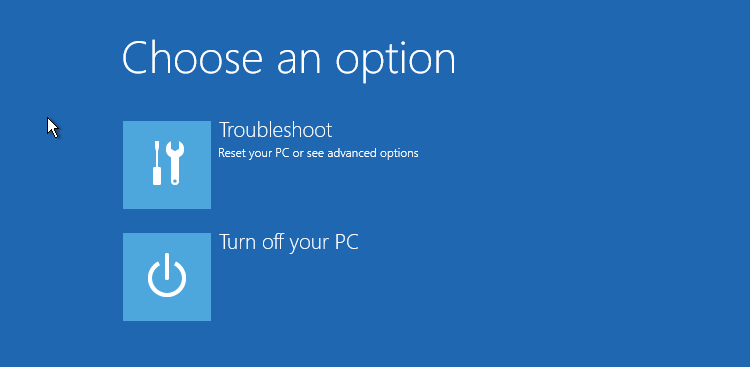
Step 6. On the Advanced options page, click Command Prompt to open it.
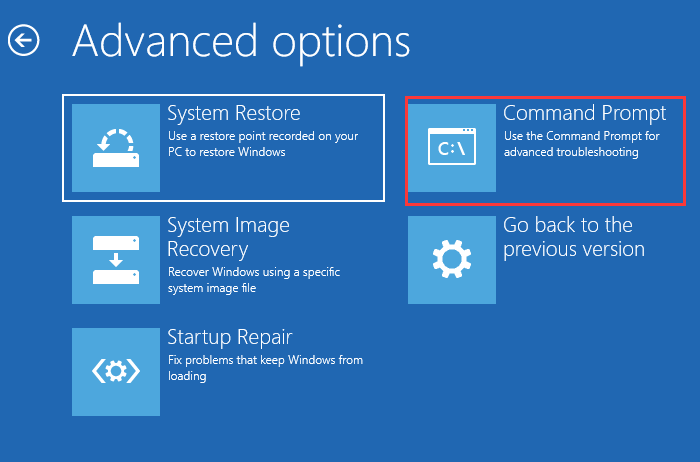
Step 7. When you successfully open the Command Prompt, you can follow the steps in Method 2 to execute CHKDSK commands.
After reading the 4 free methods in this post, I’m sure that you have learned how to use Windows 10 CHKDSK utility to repair hard drive errors. Now try one of them to complete hard drive repair by yourself.
Wrapping Things Up
CHKDSK is a Windows 10 utility for checking and repairing file system errors. You can run it from drive properties, Command Prompt, or the Windows Recovery Environment. For a graphical alternative, MiniTool Partition Wizard can also check and fix errors.
Choose the appropriate CHKDSK command based on your issue, and remember to back up important data if you suspect a physical drive failure before attempting repairs.
If you encounter any issues while using MiniTool software, feel free to contact us via [email protected].
CHKDSK Windows 10 FAQ
About The Author

Position: Columnist
Charlotte is a technology columnist with a strong focus on the Windows operating system, specializing in disk management, backup, and data recovery. She is passionate about analyzing computer errors, identifying root causes, and delivering practical solutions. In her free time, she stays updated on the latest developments in computer systems and hardware while continuously learning new technologies to broaden her expertise. Her writing style is clear and easy to understand, making complex technical topics accessible even to users with limited computer knowledge.
User Comments :