
For some reasons, users need to move or resize partition sometimes. To more or resize partition in an effortless way, the professional partition manager MiniTool Partition Wizard is highly recommended.
About Move/Resize Partition
Move/Resize Partition is capable of changing partition size and location in Windows with ease. It helps:
- Enlarge a small partition or shrink a large partition when Windows Disk Management tool does not offer Extend Volume and Shrink Volume features.
- Extend or shrink a FAT partition in Windows Vista, Windows 7, Windows Server 2008, etc.
- Extend a partition to the left contiguous unallocated or free space.
- Extend a primary partition to contiguous free space.
- Move unallocated or free space to be contiguous to the partition users need to extend.
MiniTool Partition Wizard FreeClick to Download100%Clean & Safe
For different file systems, the partition size adjustment operations that MiniTool Partition Wizard can perform are as follows. To change the size of the bitlocker encrypted partition, please disable bitlocker encryption and restart the computer, and then turn on bitlocker encryption after the partition size adjustment operation is completed.
| Move Partition | Resize Partition (shrink/expand) | Extend Partition | Merge Partition | Split Partition | |
| FAT(12/16) | √ | √ | √ | × | × |
| FAT32 | √ | √ | √ | × | √ |
| exFAT | √ | × | × | × | × |
| NTFS | √ | √ | √ | √ | √ |
| EXT(2/3/4) | √ | × | × | × | × |
| Linux Swap | × | × | × | × | × |
| Unformatted | × | × | × | × | × |
| Other | × | × | × | × | × |
| Bitlocker Encrypted | × | × | × | × | × |
How to Move/Resize Partition
In general, Move/Resize Partition contains 3 operations – shrink partition, extend partition, and move partition. Let’s see these operations in detail.
MiniTool Partition Wizard DemoClick to Download100%Clean & Safe
Step 1. After successful installation, please launch MiniTool Partition Wizard to get its main interface.
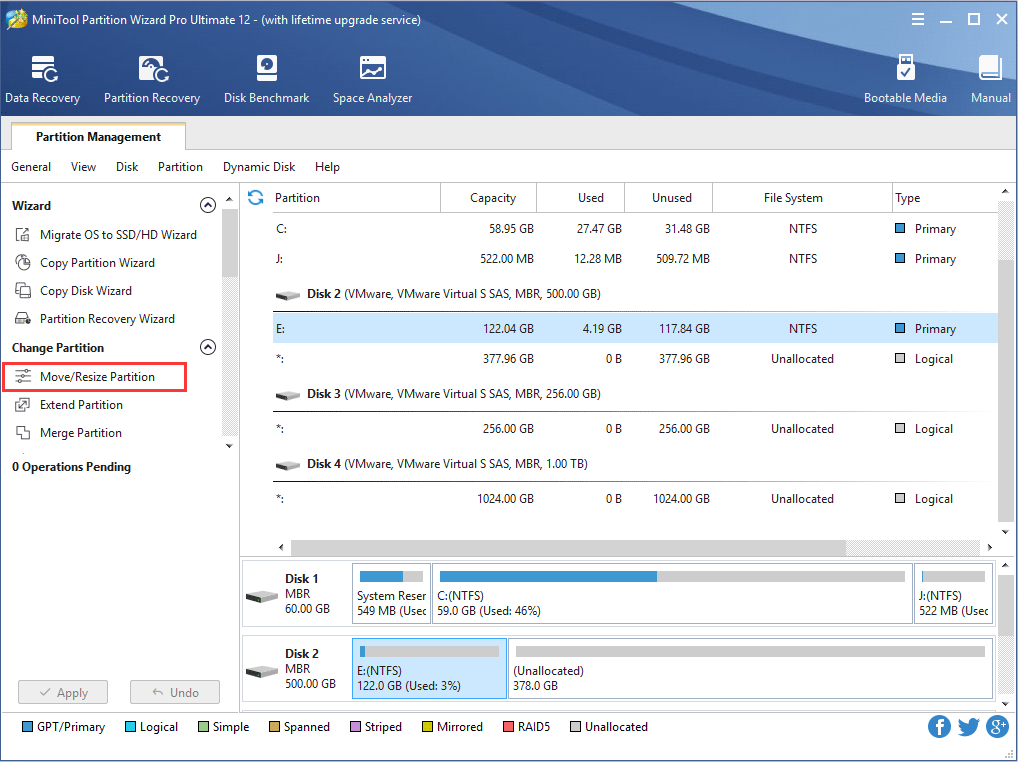
Step 2. Select the partition to operate and activate Move/Resize Partition from the left action panel or choose Move/Resize from right-click menu.
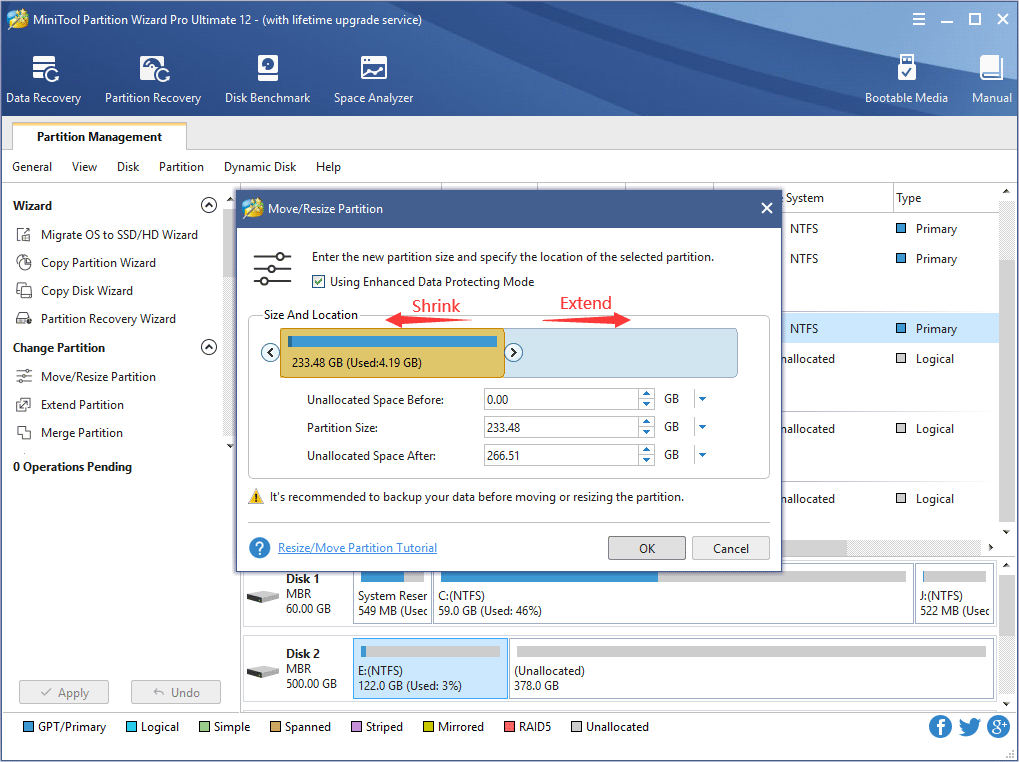
Step 3. The blue handle represents partition while the blank area means unallocated space. Do the followings and click OK to go back to the main interface.
- To shrink a partition, shorten the handle by dragging the triangles.
- To extend a partition, lengthen the handle to occupy more unallocated space.
- Alternatively, users can manually type specified partition size in MB, GB, or TB.
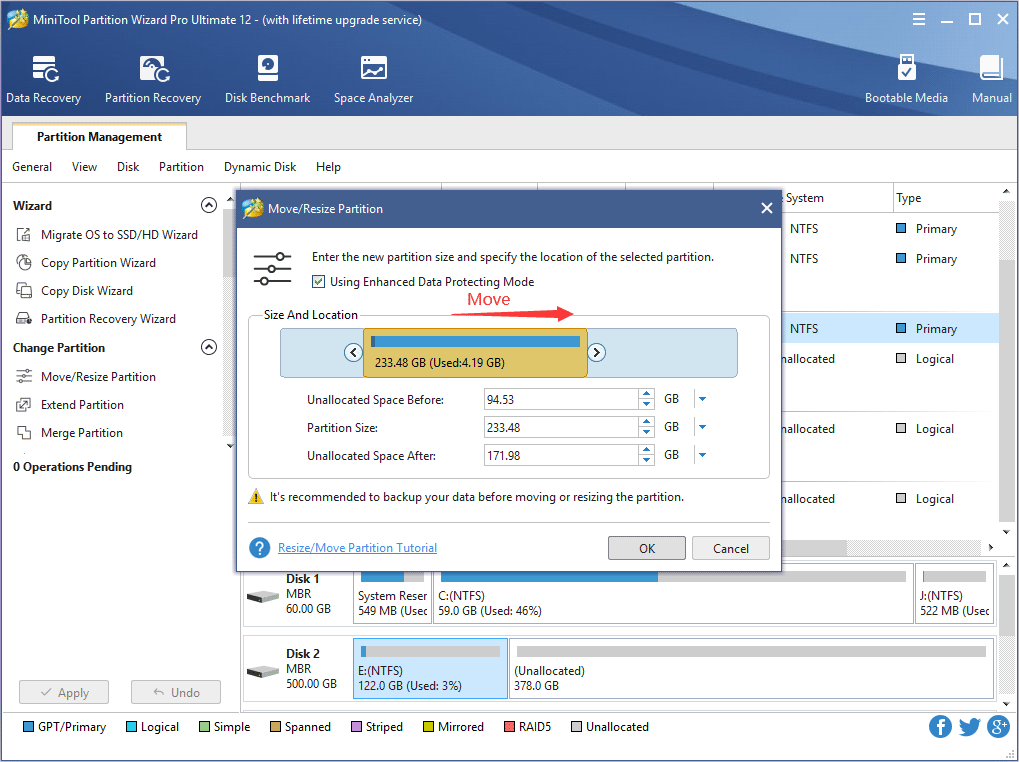
To move a partition, drag the whole partition handle towards unallocated space or manually define unallocated space before or after the partition.
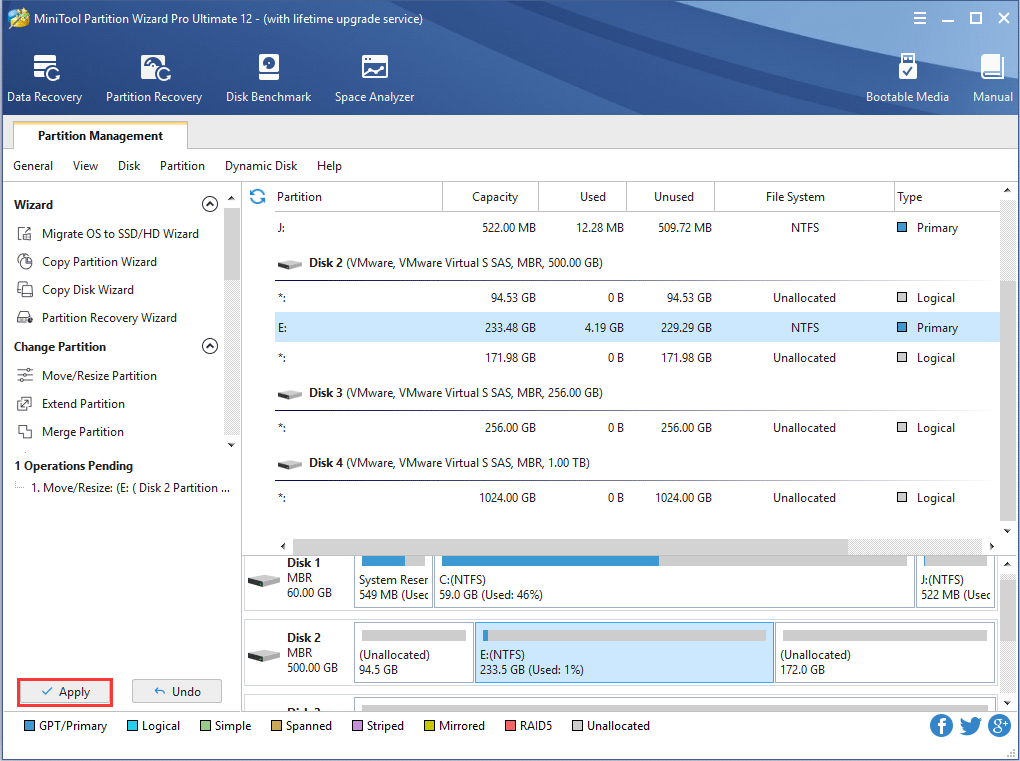
Step 4. From the main interface, users can preview that the selected partition has changed its position. At this time, please click Apply button to apply the change.
This is the end of the tutorial on Move/Resize Partition feature in MiniTool Partition Wizard.
User Comments :