
How to change Partition Type ID with ease? Here MiniTool Partition Wizard tutorial shows how to change partition type ID within simple steps.
About Change Partition Type ID
For MBR-style partition, each partition has one partition type ID, so the system can tell the type of partitions by the ID. There are many partition type IDs, and the following IDs are frequently used:
- 0x07 NTFS
- 0x0B FAT32, used by DOS & Win95
- 0x0C FAT32 using LBA mode to access to FAT32 partition
- 0x01 FAT12
- 0x04 FAT16, less than 32 MB
- 0x06 FAT16, greater than 32 MB
- 0x0E FAT16 using LBA mode to access to FAT16 partition
Usually GPT hard drive has EFI system partition or Microsoft reserved partition, which refers to the partition type ID. When there is a special need, users may want to change the partition type ID. MiniTool Partition Wizard provides users a feature to change type ID on GPT disk.
How to Change Partition Type ID
Change Partition Type ID is very simple. Only three steps are required to complete this job. The following is the MiniTool Partition Wizard tutorial.
MiniTool Partition Wizard DemoClick to Download100%Clean & Safe
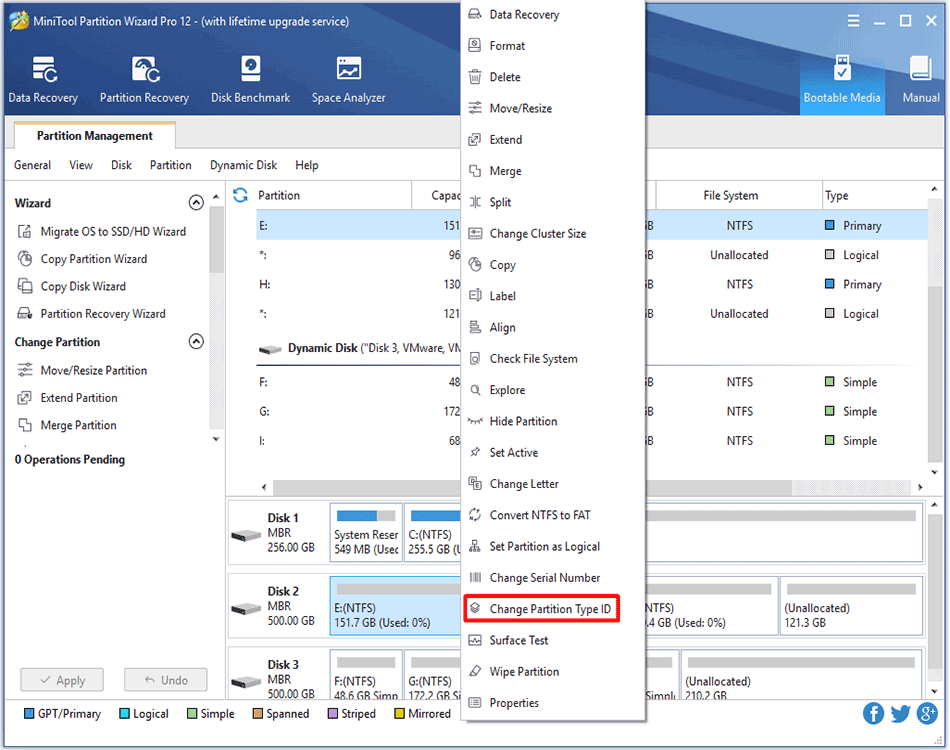
Step 1. Select or right-click the partition and click Change Partition Type ID from the action panel or pop-up menu.
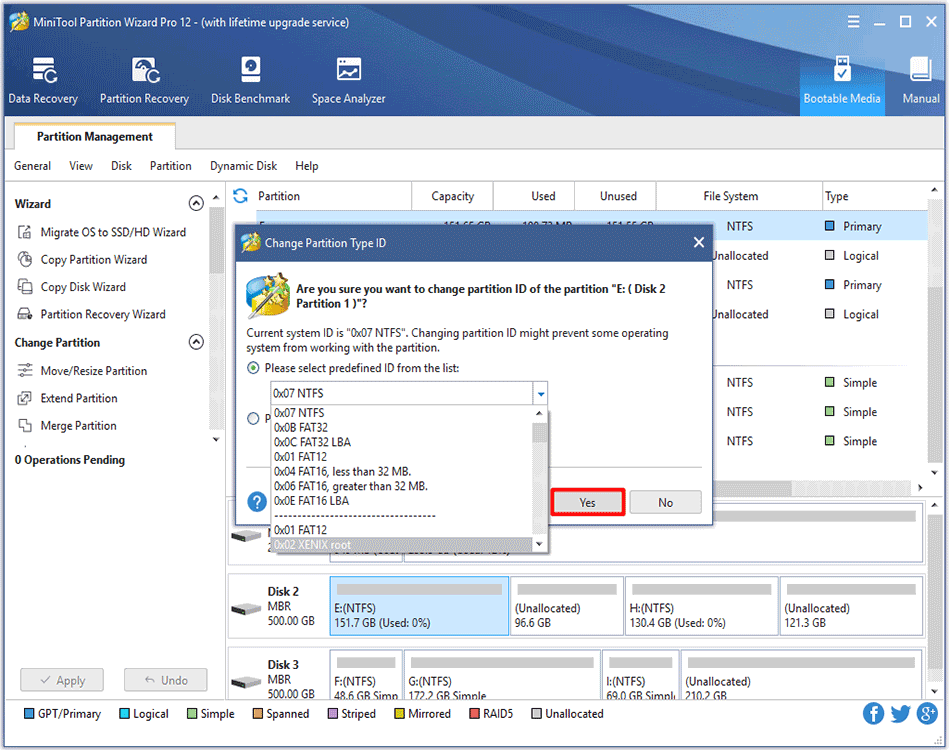
Step 2. Choose a partition type ID from the list or enter ID manually according to actual need. And then click Yes button to go back to the main interface.
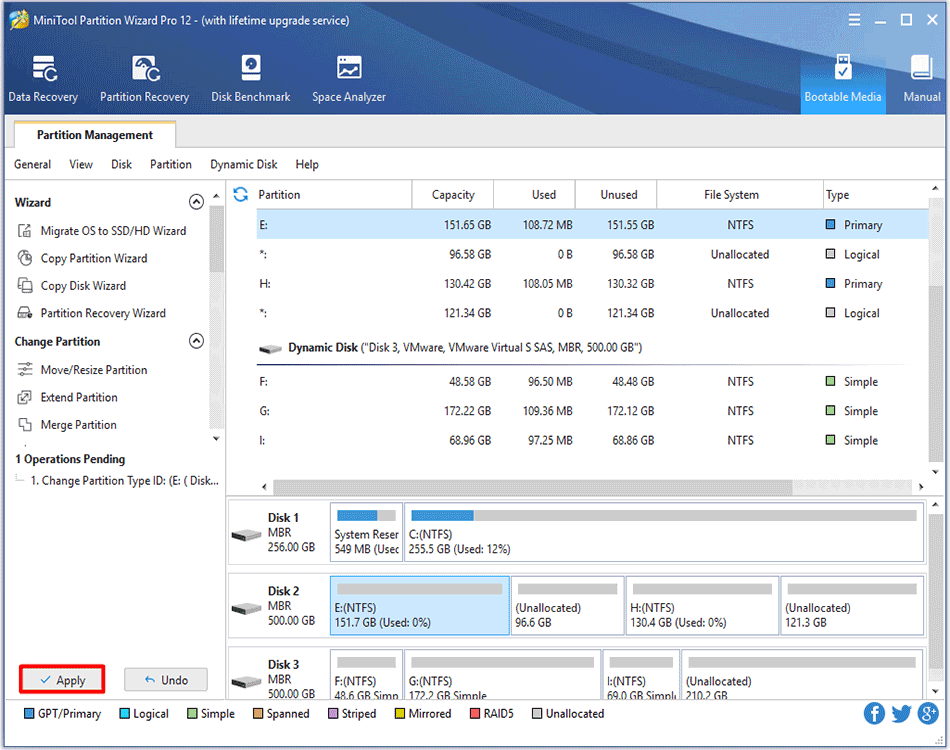
Step 3: Click Apply to execute this change.
About The Author

Position: Columnist
Rodin is an enthusiastic IT writer focusing on Windows trends, disk partition management and data recovery. She loves to write and share her idea about the useful tips and tricks on personal computers' maintenance. If you are looking for methods to improve your computer performance, manage hard drives and recover data from different devices, Rodin can provide reliable solutions for data management.
User Comments :